March 10th, 2026
This release brings powerful new ways to reduce noise and share insights, plus a major reorganization of how you access agents and devices. Less clutter, more control.
🔕 New: Error Exclusions for Alerts
Not every error deserves to wake someone up at 3am.

The new Error Exclusions feature lets you define patterns to filter out expected or harmless errors from triggering alerts. Find it under Incidents → Configuration → Error exclusions.
Create rules based on error patterns (e.g., "robot unreachable" during planned maintenance) and focus your alerts on what actually matters.
🔗 New: Public Dashboard Sharing
Need to share a dashboard with someone outside your workspace? Now you can.

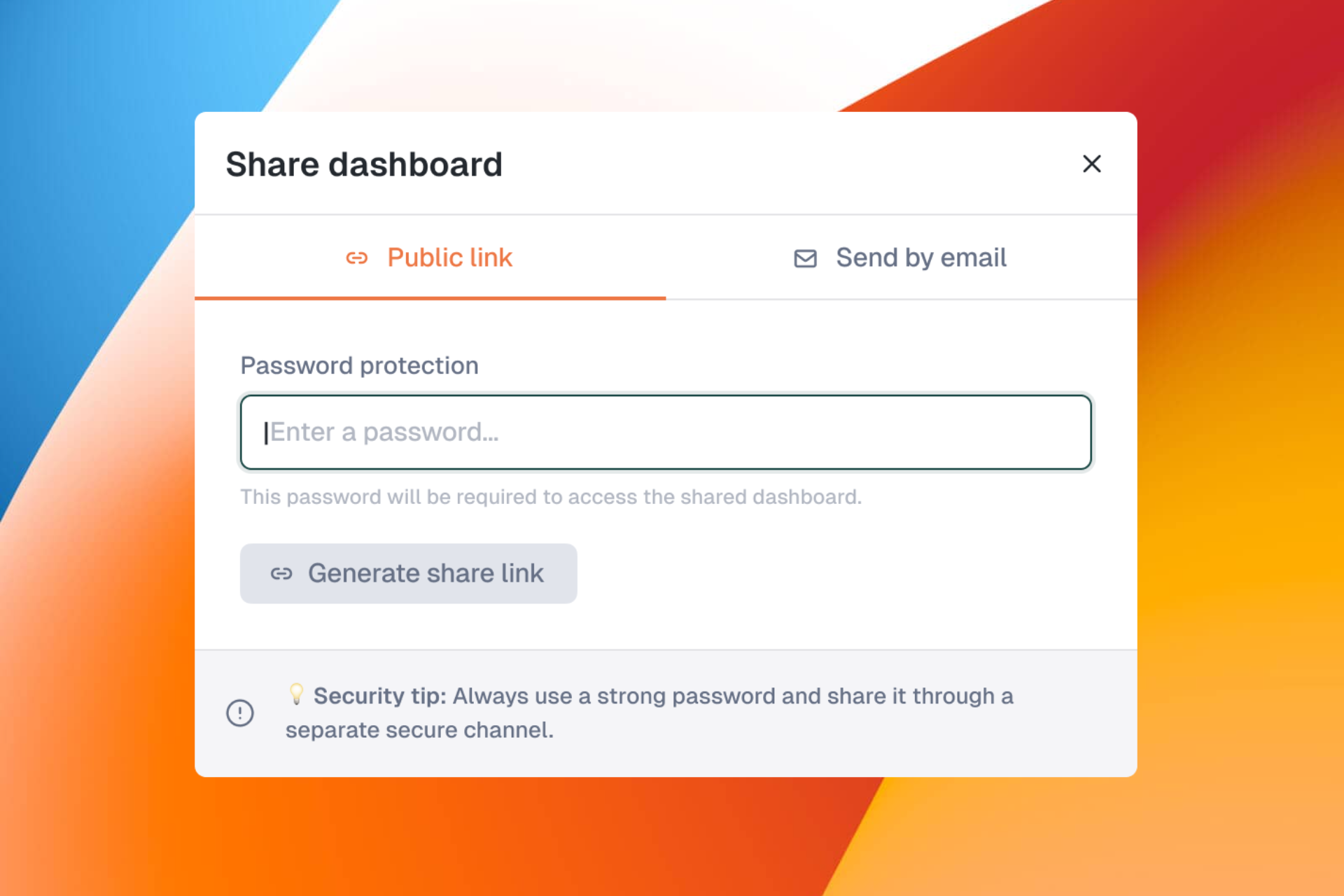
Generate a password-protected public link for any dashboard. Recipients can view the dashboard without needing a Kapptivate account.
Password protection required (minimum 8 characters)
Share via link or email
Revoke access anytime
Perfect for sharing status pages with clients or stakeholders.
🏠 Redesigned: Agents & Devices in Main Navigation
We've moved Devices lab, Browser presets, and Agents out of the admin panel and into the main sidebar under Equipments.

What this means:
All users can now see and browse agents, smartphones, and devices
Actions are permission-based: only users with the right roles can perform maintenance, reboot, or configuration changes
Cleaner separation between viewing and managing
No more hunting through admin menus to check device status.
⚙️ Redesigned: Settings & Account Management
We've reorganized the Settings panel for clarity:

My Account: Profile & Preferences in one place
Workspace: Products, Users, Teams, Roles
Administration: Notifications, API Keys, Security policies, Event log
A simpler structure that's ready for future enhancements.
✨ Improvements
Smoother test creation: Improvements to both smartphone and web test creation flows
Custom capabilities restored: Custom browser capabilities are accessible to all users again (sorry for the temporary restriction!)
Another step toward a cleaner, more intuitive Kapptivate.
Let us know what you think! 💬
February 25th, 2026
This release focuses on the little things that make your daily testing workflow more intuitive. Better navigation, more control over timing, and clearer execution details.
⏱️ New: Step Delay & Selector Timeout Controls
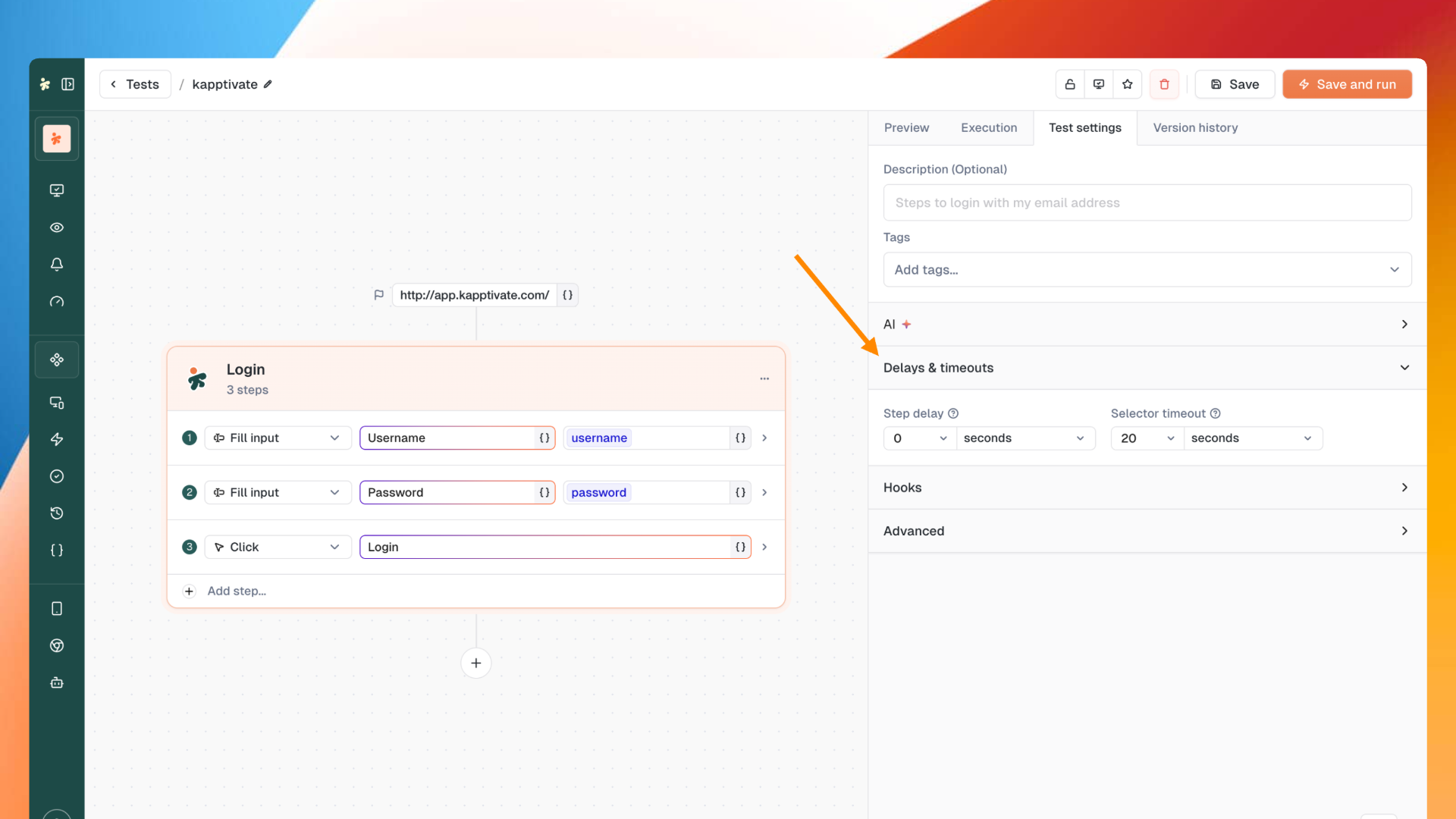
Fine-tune your test timing with new controls for web tests.

You can now configure step delays and selector timeouts directly in your test settings. Perfect for handling slow-loading elements or adding breathing room between actions.
🔗 New: Intent Field for Get Email Link
The Get email link action just got smarter.

The new Intent field lets you specify exactly which link to retrieve from an email. Whether it's "the first link in the text," a password reset link, or a verification URL, you're now in control of what gets captured thanks to our AI.
🧭 Improved: Collection Navigation
Moving through your test collections is now more intuitive.

We've reworked the back buttons and breadcrumbs to make navigation feel natural. No more wondering where you'll end up when you click back.
📋 Improved: Browser Preset in Execution Details
You can now see which Browser Preset was used directly in the execution details page.

At a glance, know if that test ran on Chrome Desktop, mobile Safari, or any other configuration. No more guessing.
✨ UX Polish
Preserved element selection: When changing an action type, your recorded element stays selected
Consistent iconography: Updated icons across the interface for better visual coherence
February 10th, 2026
This release is packed with features you've been waiting for. Automate repetitive setup and teardown with Hooks, test across any browser and screen size with Browser Presets, and filter your Realtime Status with surgical precision. Plus, all your agent types now get the same love with brand new detail pages.
🪝 New: Hooks — Automate Before & After Actions
Say goodbye to repetitive setup and cleanup steps scattered across your tests.

Hooks let you run step groups automatically at key moments:
Before a test: set up your environment, log in, prepare data
After a test: clean up, log out, reset state
Before each step: add consistent pre-conditions
After each step: capture screenshots, validate state
Define it once, reuse it everywhere. Your tests just got cleaner and more maintainable.
🌐 New: Browser Presets — One Test, Every Device
"How do I test my site on mobile?" You asked, we delivered.


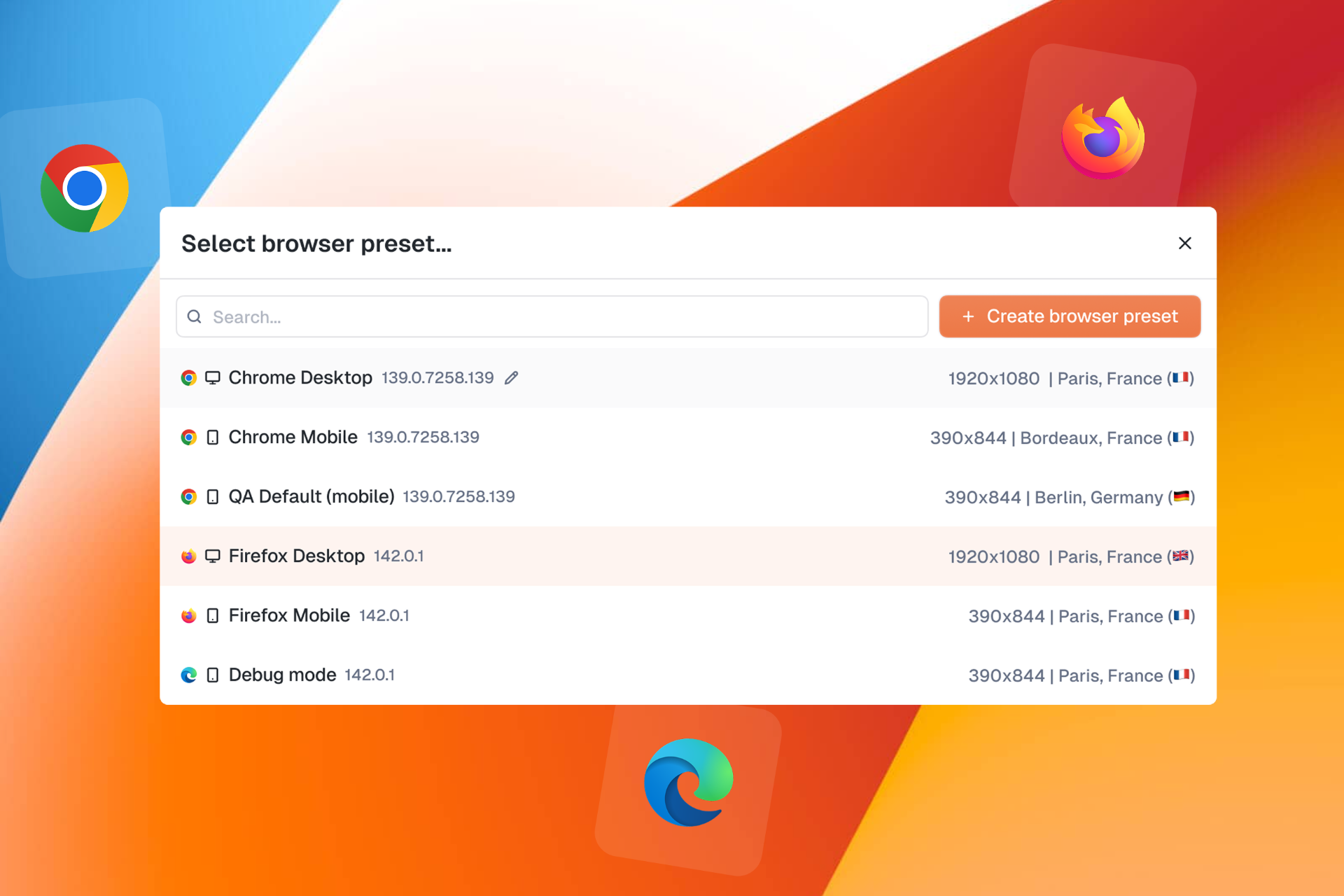
Browser Presets let you configure and save browser configurations including:
Browser type: Chrome, Firefox, Edge, Safari...
Screen size & viewport: desktop, tablet, mobile
Timezone & locale: test like your users experience it
Custom headers: add authentication or custom parameters
Create a preset, select it in your test, and you're good to go.
🔍 New: Advanced Realtime Status Filters
Your monitoring just got smarter.

The new filter groups on Realtime Status let you build complex queries with OR / AND logic:
Group filters together
Choose how groups combine
Get exactly the view you need
Whether you're tracking specific products, zones, or test types, you're now in full control.
📱 New: Agent Details Pages for All Agent Types

Following our Web Agent redesign, Cellular, Passive, and Smartphone agents now have their own dedicated detail pages with a clean tabbed interface:
General: agent info and quick actions
Connected Devices: see all SIMs, smartphones, and devices at a glance
Monitors: all monitors running on this agent
Settings: configuration and management
A unified experience across all your agents.
⚠️ New: Device Issue Status in Monitors
When a monitor fails due to a device issue, you'll now see it clearly.

No more guessing whether it's your test or your hardware. The new device issue status makes troubleshooting straightforward.
✨ Improvements
Custom capabilities for everyone: Custom browser capabilities are now available to all users in web test settings
Faster filters: Improved performance on Realtime Status filter operations
Product visibility: Product name now displays on Realtime Status in display mode
Smoother forms: Web test creation forms performance improvements
Tighter permissions: Agent settings actions (Auto Updates, Delete, Reset Password) now restricted to Super Admins with clear tooltips
Teams webhook proxy support: Microsoft Teams webhooks now support proxy and insecure skip verify options
🐛 Fixes
Fixed crash on old alert format
Executions now display start date instead of created date
Fixed alignment issues in browser preset modal
Fixed execution list not showing date for queued tests
Fixed inability to add headers when editing browser presets
Removed duplicate and deprecated timezone options
Fixed bulk monitor device edition
Fixed StepDetails panel closing unexpectedly when changing step type
Fixed monitors page crash during data loading
Fixed web edition losing data when editing steps
Fixed tags disappearing when saving unmodified tests
Fixed missing French translations for SIM slot reboot
Fixed login and password reset pages incorrectly requiring authentication
Fixed missing scheduling tooltip translation on Realtime Status
Fixed broken SIM links in Cellular Agent Connected Devices tab
January 14th, 2026
This release brings powerful new ways to manage your testing workflow. Whether you need to stop a test mid-execution, fine-tune how you visualize your Realtime Status, or get deeper insights into your web agents: we've got you covered.
🚀 New: Cancel Running Web Tests

You asked for more control over your test executions — we heard you!
You can now cancel running executions directly from the new no-code web tests. Whether you're in the test creation form or browsing your test list, stopping a test is just one click away.
No more waiting for a test to finish when you've spotted an issue early. Just hit Cancel execution and move on.
🎛 New: Display Options on Realtime Status

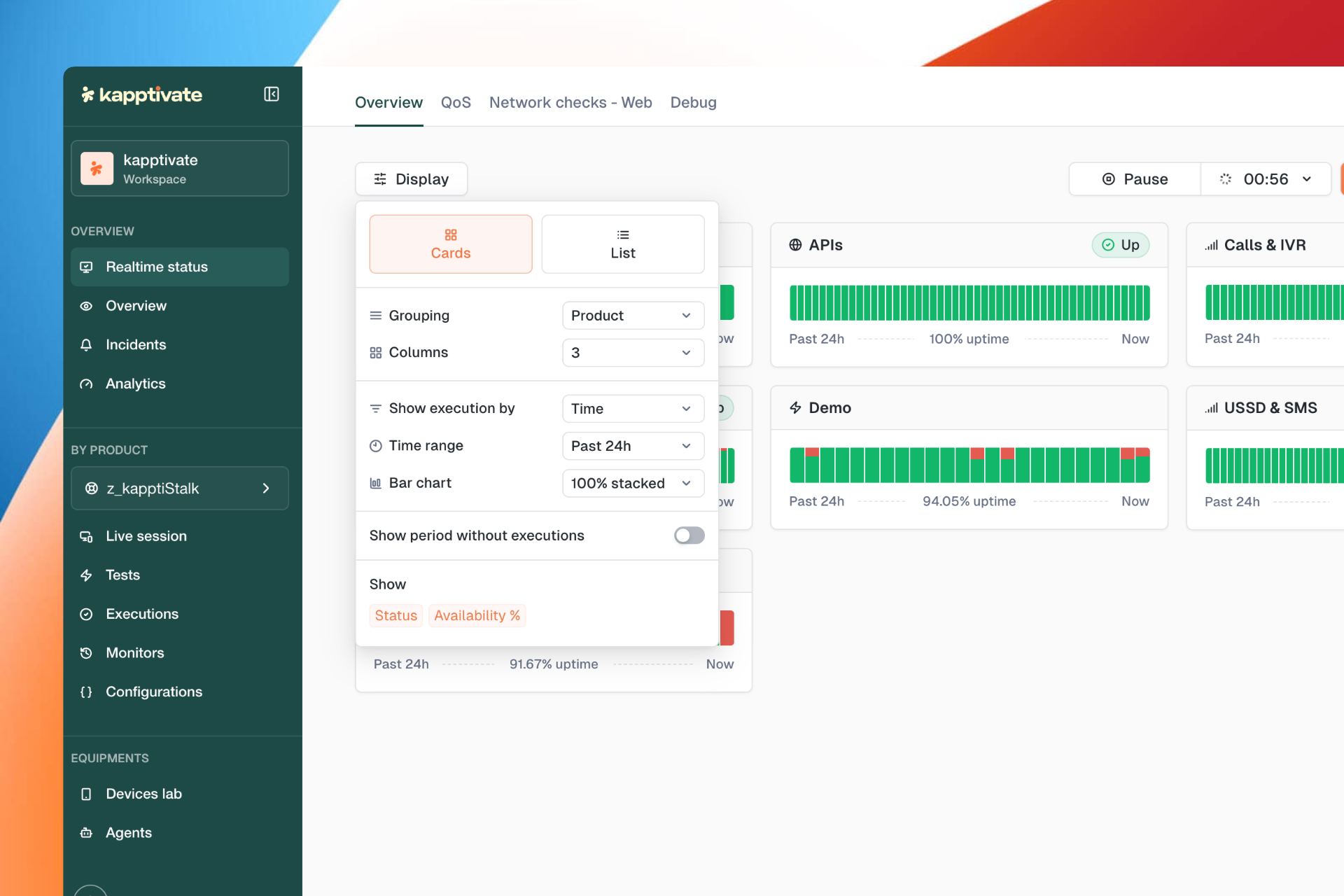
A brand new Display button has landed on the Realtime Status page, giving you full control over how you visualize your monitoring data:
Cards or List view - choose the layout that works best for you
Flexible bar charts - disable the 100% stacked view to see actual execution counts
Grouping & columns - organize your data by product, adjust column count
Time range & execution display - customize exactly what you see
Your dashboards, your way.
🖥️ New: Web Agent Details Page

The Web Agent details page has been completely redesigned with a clean, tabbed interface:
General - agent info, status, and quick actions (reboot, test-only mode, maintenance)
Usage - see how your agent is being utilized
Capacity - monitor available resources
Monitors - view all monitors running on this agent
Settings - configure agent behavior
Event logs - track everything happening on your agent
Everything you need to manage your web agents is now in one place.
✨ Improvements
Run tests faster: The
CMD/CTRL + ENTERshortcut now submits the form and runs the test without needing to save firstTeams webhook support: Workflow webhooks now work with Microsoft Teams
Smarter collection handling: Creating a test from a collection now places it in the correct collection automatically
🐛 Fixes
Fixed agent reboot not working properly
Resolved excessive test version creation
Optimized page loading performance
Variable names no longer change unexpectedly when updating values
Fixed empty state and SIM table appearing simultaneously
Added scroll to the Create Variable Group modal
Fixed crash on execution drawer
Status dropdown in tests table now renders consistently when open and closed
Variables can now be properly overridden in scripts
Excel report generation no longer shows false failure messages
Fixed bulk monitor creation from tests
Users now see a notification when copying a product with missing variables
Fixed variables override behavior
Execution time now displays correctly in web form v2
Fixed missing status in Send SMS action
As always, your feedback helps us improve. Let us know what you think!
November 26th, 2025
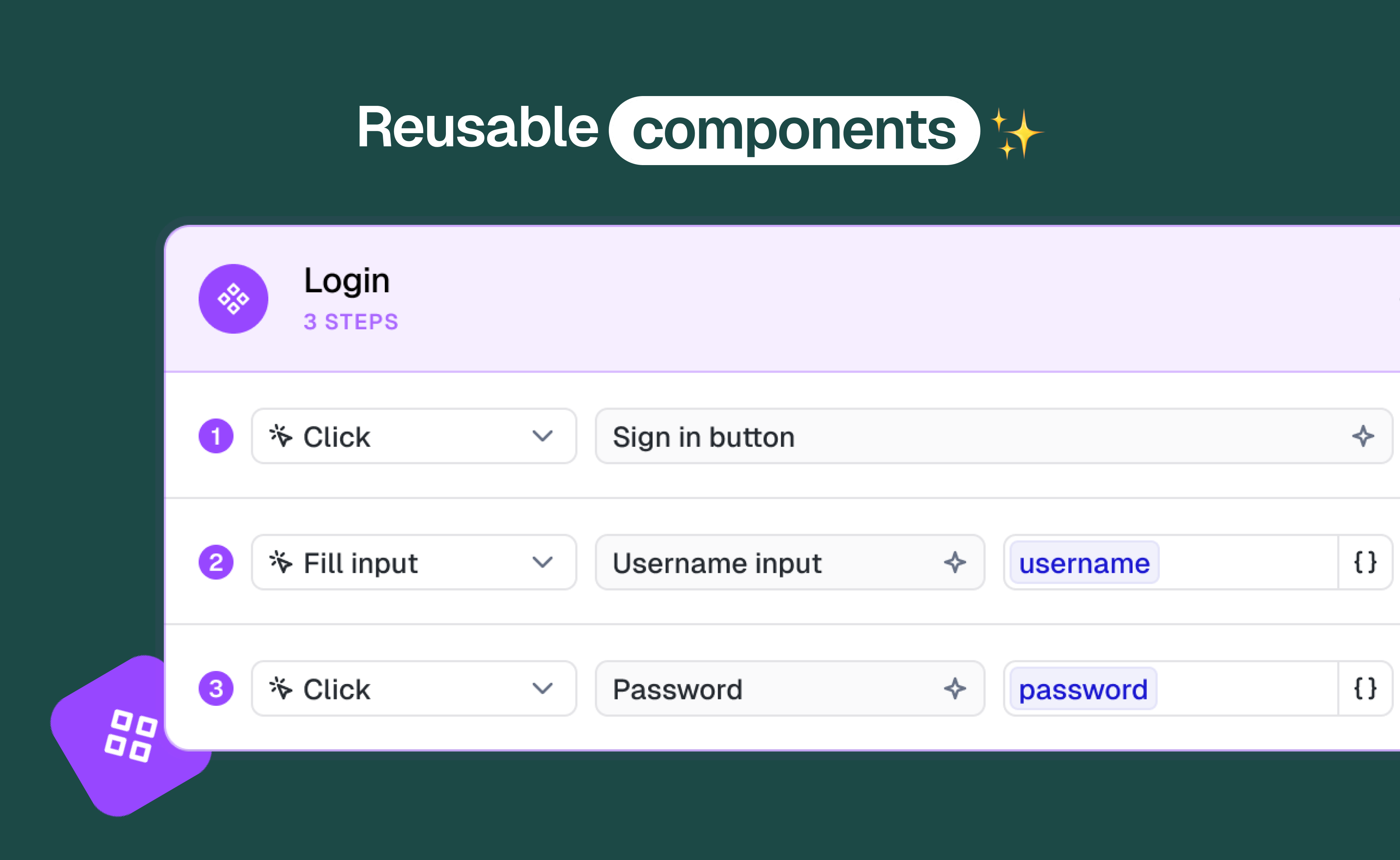
You’ve been building more and more scenarios in Kapptivate, and one thing kept coming back:
“We need to have a solution to not repeat ourselves in the different scenarios”.
This release brings a big leap in how you create, maintain, and scale your test suites — with reusable building blocks, smarter editing, and better control over your environments.
🚀 New: Reusable Components
Say hello to Reusable Components — the fastest way to build tests without repetition.
Reusable Components are step groups you create once and reuse everywhere (login, logout, user creation, setup flows, etc.).
Update them a single time, and all the tests using them stay automatically in sync.

Why it matters:
Write common flows once, reuse infinitely
Massively reduce maintenance when apps change
Compose scenarios like Lego instead of copy/pasting steps
Keep large test suites consistent and scalable
Reusable Components are now available directly in the test creation form, so you can insert blocks as you build.
Collections for Components (new)
To keep things organized as your library grows, you can now store reusable components inside Collections.

Collections are available in the reusable page and in the import modal, making it easy to browse the right blocks fast.
✨ More new goodness in the Test Builder
Move Step Groups Up / Down
Reorder groups instantly with new Move Up / Move Down actions.Reset All Selectors (one click)
You can now clean all selectors in a test without touching reusable steps.No Web Agent Warning
If no web agent is available while creating a test or reusable, Kapptivate tells you clearly.Run Button Placement Updated
Run now sits right next to Save in the new web test form for a smoother workflow.Tooltips on Icon Buttons
Tooltips are now displayed on all icon-only buttons for improved accessibility and clarity.
🛠 Improvements
Fixed a bug preventing the monitoring form from being saved when the monitor was paused.
Improved reliability of the Live button opening the fullscreen modal.
Corrected the display of “Connecting…” in live preview across different screen sizes.
Improved Live Browser display when execution is pending.
Execution duration is now accurate in multiple test execution.
You can now run a test with CMD/CTRL + ENTER from the new test builder.
Reset all selectors now only affects the test, not reusable component steps.
🐛 Fixes
Deleting a reusable from its edit page now redirects correctly to the reusable list.
Fixed the clickable area on reusable cards.
Removed last incorrect mentions of “tests” on the reusable edit page.
Duplicate test now correctly duplicates tests created with the new web test flow.
Fixed a visual issue where an assert not displayed step could render incorrectly.
Fixed cellular agents slots that could not be rebooted.
Step details are now correctly disabled when viewing steps inside a reusable component.
Collection and AddTeams modals are now removed from the DOM when closed.
Fixed smartphone details page display.
Detach component now detaches the entire reusable block.
Fixed reusable creation failing if no test had ever been created before.
Fixed step select values not being saved after changes.
Adding a reusable to a test no longer resets form values after a run.
Fixed reusable search showing incorrect titles.
Clicking a reusable selection checkbox no longer navigates to the edit page.
November 20th, 2025
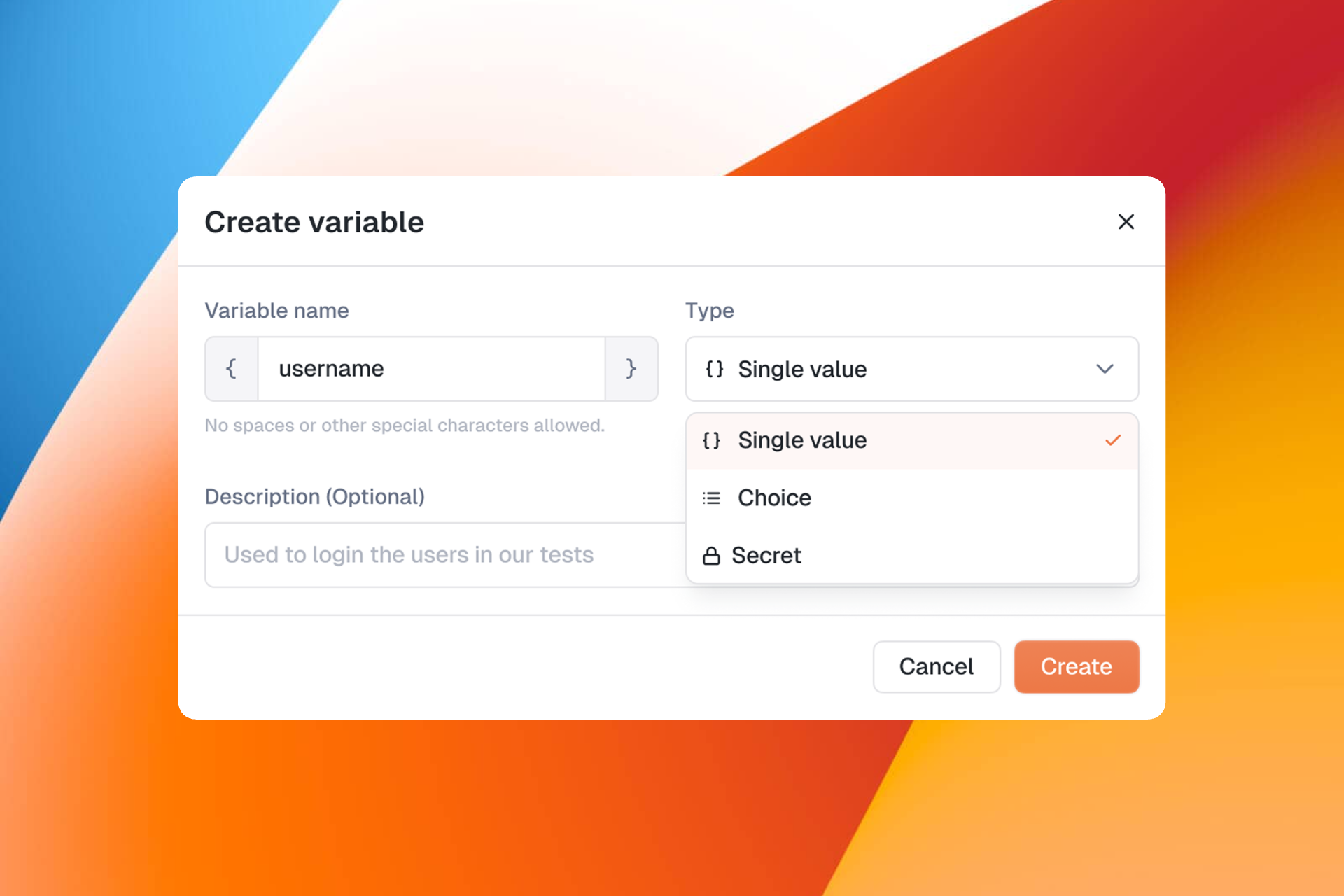
You’ve been asking for a better way to manage test data, centralise values, and securely handle credentials across environments.
Today, we’re introducing a major upgrade to Variables in Kapptivate — and the addition of a brand-new concept: Secrets.
This update makes your scenarios more flexible, secure, and scalable than ever.
🔐 Introducing Secrets (new)
Safely store sensitive values such as passwords, access tokens or internal IDs — encrypted at rest and hidden in the UI.
Secrets can be referenced just like any other variable, so you can use them inside your scenarios without exposing sensitive data.

Perfect for:
User credentials
API keys
Authentication tokens
Sensitive identifiers
🎛 Upgraded Variables
Variables have been redesigned to give you more control and better maintainability across large test suites.
1. Single-value variables
Store a universal value once (URL, endpoints, IDs…) and reuse it across multiple scenarios.
2. Choice variables
Define a dropdown list of predefined values. Great for roles, device types, IBANs, or any input that changes depending on the use case.
3. Inline usage in scenario steps
Insert variables and secrets directly inside step inputs, assertions and conditions, making tests easier to maintain and adapt.
After testing the beta experience with some of you, we’re now focusing on various UX improvements, including those related to variable groups. 💡
October 14th, 2025
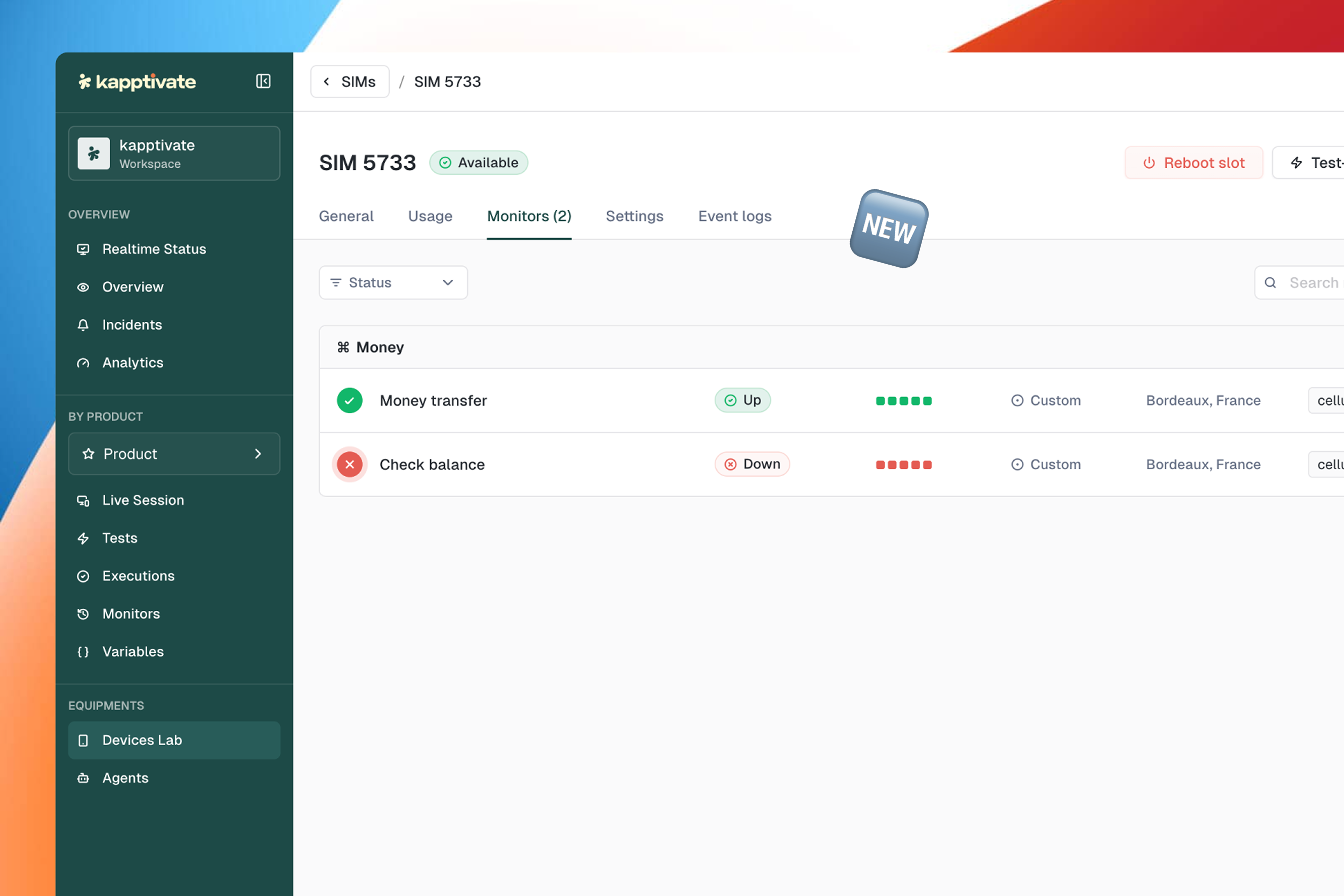
We’ve improved the SIMs & Smartphones details page to help you better understand each device’s status and activity
You can now:
See detailed usage insights and the monitors running on the device
Access all relevant device data in one clear view
Get helpful guidance when a device is disconnected, so you know exactly what to do next
Explore the new experience — everything you need to monitor your devices is now clearer and more insightful ✨
September 12th, 2025
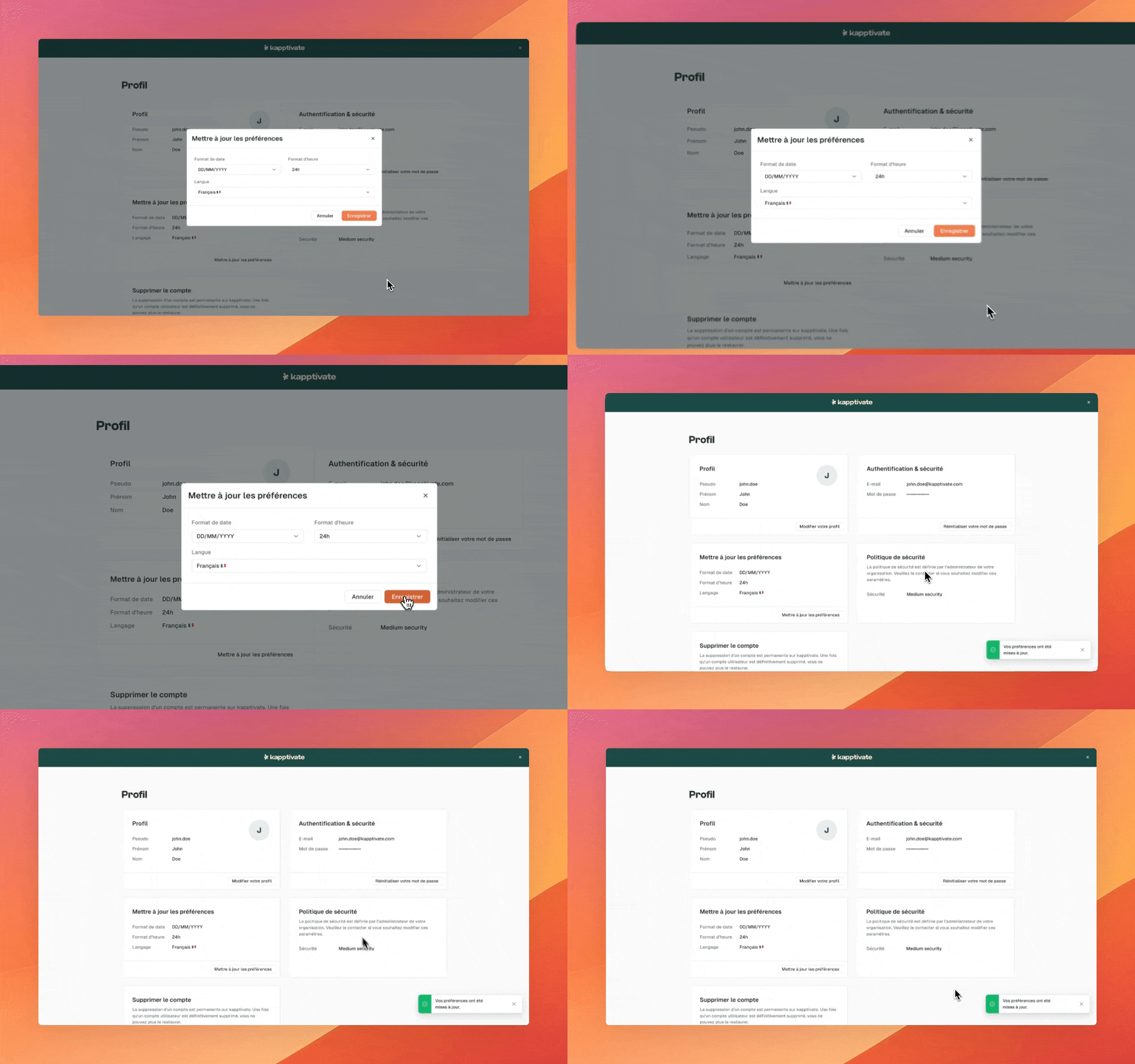
Great news for our French-speaking users! You can now use Kapptivate in French. To switch your language:
Go to your Profile
Click on Update Preferences
Select Français
Click Save
Voilà! Kapptivate will now be displayed in French, making your experience even smoother.
May 20th, 2025
Say hello to our newest feature: test-only mode! With this new option, you can temporarily pause all monitors running on a device, giving you full access to use it freely. It’s especially handy when you want to implement new tests on a device that’s already used for monitoring, or simply need to access the device remotely without being disrupted.
How to activate test-only mode
There are three ways to activate test-only mode on a smartphone, SIM, or web agent. You can do it from the Devices list, within the Device details page, or simply by right-clicking the device on the Live Session page.

What is test-only mode used for?
Once a device is in test-only mode, all monitors that were previously running on the device are paused with a special status:

This makes it easy to use the device in the Live Session page and to create new tests without monitors interfering while you're working. No more manually disabling monitors before creating new tests or trying to remember to turn them back on afterward!
We’d love to hear your thoughts on this new feature! Feel free to reach out to us via WhatsApp or email at support@kapptivate.com!
May 6th, 2025
You asked, we listened! You can now open support tickets directly on kapptivate, and if you create an account you’ll be able to track their status, updates, and more.
Open tickets from kapptivate
It is now possible to open support tickets directly on kapptivate. To do so, simply click on the question mark at the bottom left of the kapptivate interface, and then, select “Contact us”. This will take you to a form that you need to fill and submit in order to create a ticket.

Use the portal to track your tickets and view past requests
If you want to follow your current tickets, view all the tickets that you previously opened, etc., you need to create an account.
On the form that you used to create a ticket (or on help.kapptivate.com), you can see a “Sign in” button at the top. Click on this button and then create an account by using the “Sign up” button at the bottom left. To create an account, you simply need to fill in a name and an email address.

Then an email will be sent to you to configure a password. Once done, simply go to help.kapptivate.com and sign in with your credentials.
At the top right, click on your icon and select “Requests”. This will take you to a page where you will be able to see all your tickets, their status, you will be able to leave replies, etc.

Please note that it can take a few minutes for the requests to appear in the “Requests” section.