Find your elements faster with the smartphone recorder, and alerts that land in Slack, Teams & Jira
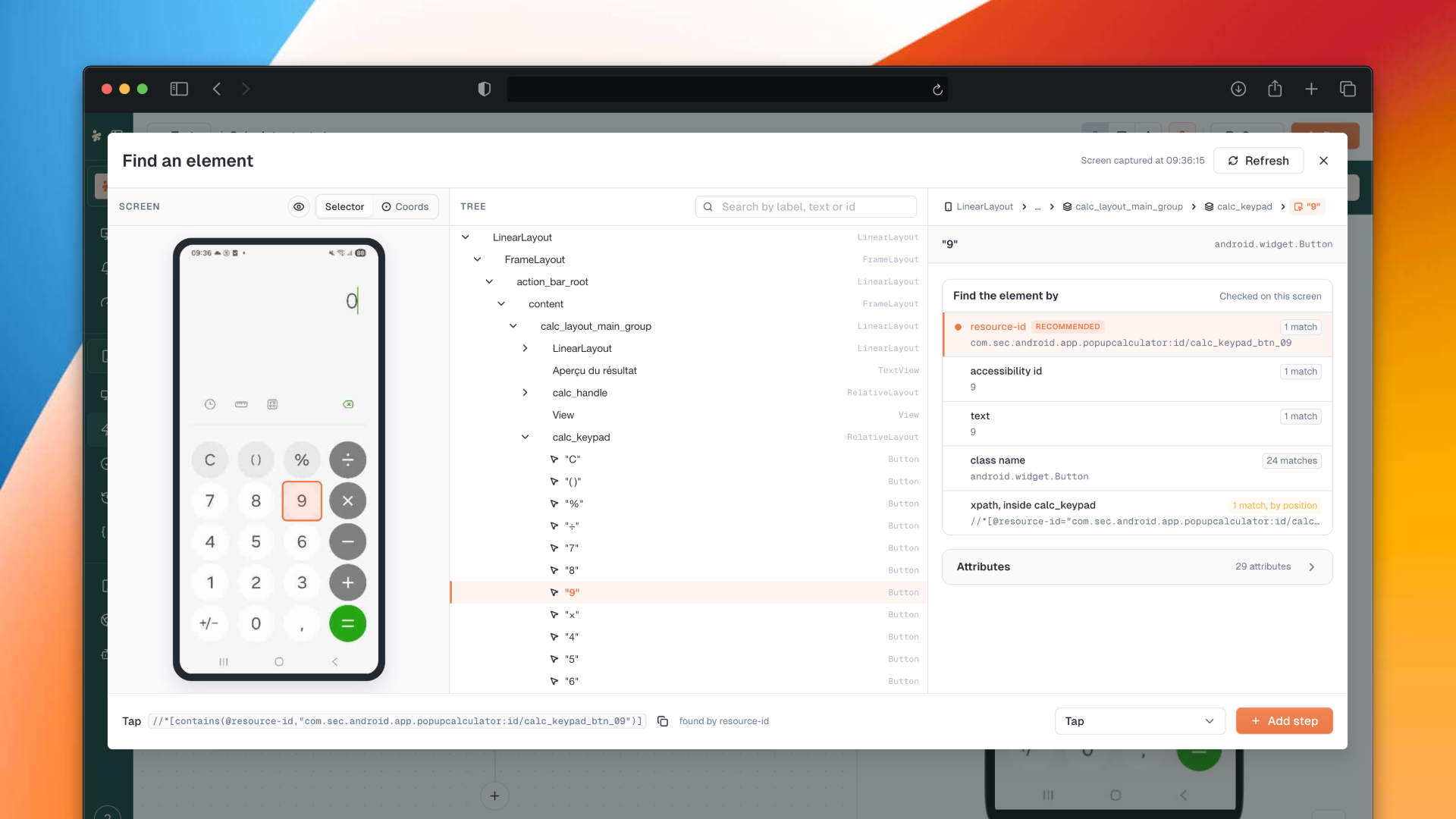
The smartphone recorder gets a major upgrade: instead of navigating through an XML tree, you now select elements directly on the screenshot. Plus, Slack, Microsoft Teams and Jira are now connected once and picked from a list when setting up alerts.
📱 Improved: Find an element, on the smartphone recorder
The recorder's "XML tree" is now Find an element. Instead of navigating through an XML hierarchy, you now work directly on the screenshot: hover to highlight, click to select.
How it works:
Three scrollable columns: hover over the screenshot to highlight elements, click to select, and the hierarchy unfolds automatically
Selectors are ranked by reliability and shown on the screenshot, with the best one preselected and marked as recommended
When multiple elements match the same selector, you're asked which one you meant, with each match numbered on screen
A search bar filters the tree by label, text or id
Coords mode: When no selector can reach your target, switch to coordinates mode. A crosshair appears on the screenshot with live x/y values you can edit. The system clearly states that this approach depends on screen resolution.
WebView support: When the element tree stops at a WebView, a banner explains why and helps you access its contents.
More steps take a locator: The element selection modal now offers Tap, Long press, Fill input, Verify element and Extract value.
API Call step is now available in smartphone tests.
Learn more about mobile recorder
🔌 New: Integration Center
Connect your tools once, use them everywhere.
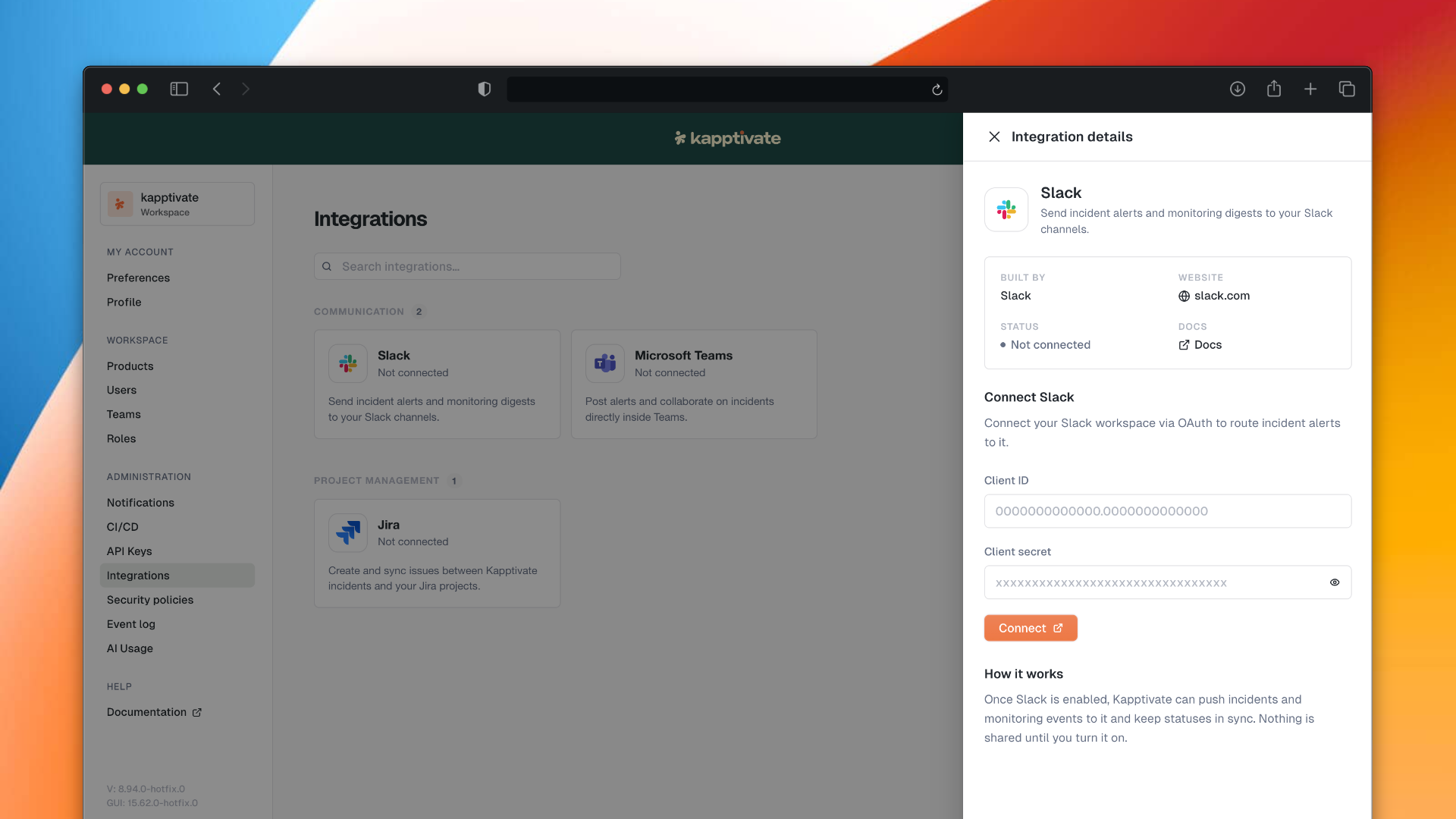
Slack, Microsoft Teams and Jira are now connected through OAuth from the new Integration Center. When setting up an alert, you simply pick a channel from a dropdown instead of copy-pasting webhook URLs.
Jira creates tickets automatically. Connect a Jira project, and tickets are created automatically when an alert fires.
Track notification delivery. The Incidents table now shows the notification status for each incident, with a failure indicator and a direct link to the Jira ticket when applicable.
⚠️ Action required: The old Slack and Teams webhook fields are gone. Reconnect your workspaces from the Integration Center to keep your existing alerts working.
🧩 Improved: Custom step editor, with AI
Custom step code now opens in a fullscreen editor for better readability.
AI assistant: Describe what you want in plain language, and the AI generates the code using your test's actual selectors
Insert variable button: Browse your product's variables and insert them with the correct syntax
Library indicator: Shows which library script your step is using
Dependency warning: If your script relies on data from a previous step, you'll be warned that it won't work standalone
☁️ Improved: BrowserStack
BrowserStack is now a proper cloud agent with its own dedicated page.
See your imported devices and account details
Your API key is validated before being saved
Removing a device removes it from all agents sharing that account
✨ Other Improvements
Deep links to test editor: Share a link that opens exactly the panel, step and tab you were looking at
Pick JSON/XML attributes visually: Instead of typing paths manually, pick them from the step's last response
Smarter warning defaults: Adding a warning on an API call step starts with Response time preselected, so you only need to set the threshold
Device status explained: Hover over a device status to see what it means
🐛 Fixes
Secret variables are now masked everywhere results are shared outside the platform
Saving a test no longer clears its input variable values
Custom library steps stay within their product; exported tests keep their code
Global storage can write variables again when their group has a single variant
Slack alert failure reasons stay clickable regardless of error message content
Re-running a test works for legacy tests and uses the device from the original run
The test editor no longer crashes when reloading after a run or when showing in-test variable fields
Using the browser back button from the test editor no longer shows an error page
Save & run on a test that other tests depend on now opens run confirmation after the update
Executions missing from observability store now fall back to the legacy store
Execution steps no longer error when an API action hasn't produced a result yet
Screenshot preview labels, navigation arrows and close button work correctly
Step type picker stays on screen and scrolls properly when expanded
The "step added" confirmation no longer covers the Add step button
Hidden in-test variables appear read-only when the form is locked
Agent actions respect permissions again
Device search finds options like "iPhone"
Dialogs have accessible names and copy buttons are keyboard-navigable